BIOS Firmware Update ISO for SuperMicro Boards

The use of floppy images for updating Bios images on SuperMicro boards such as the X9SCL or X9SCM are long over.  The images are far too big (8MB).  So the only way to do the bios update is to build a bootable DOS ISO, built with the firmware files.

This is easier said than done ofcourse, but here’s some simple instructions if you’re using windows that you can follow:

Step 1: FDOEMCD

Go here: http://www.fdos.org/bootdisks/
Download a tool called FDOEMCD.builder.zip
Unzip it on your local computer (don’t follow these instructions without unziping)
64-Bit OS users will have additional step to ALSO go to http://smithii.com/cdrtools/ and download cdrtools-latest.zip. Unzip it then copy the mkisofs.exe and cygwin1.dll files from the zip file and put it into the FDOEMCD.builder folder from above (replacing any existing version of these files).

Step 2: BIOS Flash Files

Go here: http://www.supermicro.com/support/bios/  (Or your equivalent for your BIOS), and download the correct version for your motherboard – warning – getting it wrong can permanentely destroy your motherboard – warning – 🙂
Unzip the contents of your bios download into the CDROOT folder.  You should have files such as AFUDOSU.SMC and AMI.bat.  If not then this tutorial isn’t for you (sorry!)

Now because the ISO will be read only, we need to shortcut the AMI.bat file a little bit….
rename AFUDOSU.SMC to AFUDOSU.EXE
create a new batch file called ami2.bat and put the following in it:
afudosu.exe %1 /FDT /MER /OPR

Now start up a dos prompt in windows and go to the corresponding FDOEMCD.builder folder and run makeiso.bat.

You now have fdoem.iso.  This is your bootable ISO with all your files on it (yay!)

Mount it using your favorite IPMI or burn it to CD and use it.  We just mount it using Supermicro’s IPMI.

Once it has booted, just run “ami2.bat x9scm2.608” (or equivalent) and away you go.


A big thanks to the guys that made FDOEMCD Builder.  Without that tool this BIOS update ISO building process would be a lot harder!


POST-INSTALL NOTE: Bios 2.00 which is on the SuperMicro website at this time seems to have a bug on some dual ethernet motherboards.  (such as the X9SCL!).  SuperMicro knows about it and has an app that you can add to the ISO as per the above instructions which can fix the ethernet port.  I don’t want to publicly make available a link to SuperMicro’s patching software but if you’re really desparate like we were then let us know….

Nginx location and rewrite configuration made easy

Okay guys, so as many of you know, we offer both Apache and Nginx servers here as part of our standard shared hosting packages. There is no better web server out there for reliable performance in a high-traffic environment. One thing that I frequently go through with the new staff here are nginx location / rewrite rules because they can be a bit confusing.

The best way to think of things is that as a request comes in, Nginx will scan through the configuration to find a “location” line that matches the request. There are TWO modes that nginx uses to scan through the configuration file: literal string matching and regular expression checks. Nginx first scans through ALL literal string location entries in the order that they occur in the configuration file, and secondly scans through ALL the regular expression location entries in the order that they occur in the configuration file. So be aware – location ordering order DOES matter.

Now there’s a few ways of interrupting that flow:

location = /images { } (Note: does not work for regular expressions)
The “=” is the important character here. This matches a request for “/images” ONLY. This also halts the location scanning as soon as such an exact match is met.

location ^~ /images {} (Note: does not work for regular expressions)
The “^~” results in a case sensitive match for the beginning of a request. This means /images, /images/logo.gif, etc will all be matched. This also halts the location scanning as soon as a match is met.

location ~ /images {}
location ~* /images {} (case insensitive version)
This causes a case (in-)sensitive match for the beginning of a request. Identical to the previous one, except this one doesn’t stop searching for a more exact location clauses.

That’s IT! Yes it really is that simple. Now there’s a few variations for case-insensitive matches or named-locations, but don’t worry about those for now.

Now all of the above examples are literal string examples. If you replace /images with a regular expression then suddenly you have altered the order of the rules (remember ALL literal strings get checked first, and THEN regular expressions – regardless of the order you have them in your configuration).

An examples of a regular expression match is:

location ~ \.(gif|jpg|jpeg)$ { }
This will match any request that ends in .gif, .jpg, or .jpeg.

So now that we’ve discussed the foundations of the location rules, we can move into rewrites. There are TWO kinds of rewrites – URL redirects (HTTP301/HTTP302), or an internal rewrite (mangles the request before it is processed).

URL Redirects are the simplest to understand:

location /admin {
rewrite ^/admin/(.*)$ http://admin.example.com/$1 permanent;
}

This example will redirect any request matching the location rule (see earlier) as a HTTP 301 permanent redirection to http://admin.example.com/. e.g. http://www.example.com/admin/index.html now gets HTTP redirected to http://admin.example.com/index.html. Note the regular expression and the $1 replacement in the URL. If you want the redirect to be a HTTP 302 (temporary redirection), just change the word “permanent” to “redirect”.

Internal rewrites are a little more complicated:

location /admin {
rewrite ^/admin/(.*)$ /$1 break;
}

The key word here is “break”. This causes the rewrite processing to stop. If this word was “last”, it would then go back to scanning location entries as per our discussions earlier – but now with the rewritten URL.

I hope that clears up nginx configuration. The documentation is really good over at the nginx wiki (http://wiki.nginx.org/NginxModules). I think this was the only part that sometimes confuses some of us here. let us know if you think I missed anything, otherwise I hope to put up some of our nginx rewrites for some o the more popular forums/blogs in the weeks to come!

Apache 2 + FastCgi + PHP 5 compile / build

Building the three of these is fairly easy, but a bit tricky if you’re used to how it worked in previous versions of Apache or PHP.  Please note that we install everything into prefix trees and use a tool called graft to manage the versions.  If you simply install your versions into default locations, you can probably leave out anything to do with prefix=, and top_dir.  We also download all install archives into /usr/local/PKG_BUILD.

Anyway to get started, the first trick is to build Apache 2 first by itself.  Here is an example:

cd /usr/local/PKG_BUILD
tar -xvzf httpd-2.2.8.tar.gz
cd httpd-2.2.8
./configure –prefix=/usr/local/PACKAGES/httpd-2.2.8 –enable-file-cache –enable-cache –enable-deflate –enable-mime-magic –enable-expires –enable-headers –enable-version –enable-ssl –enable-http –enable-cgi –enable-rewrite –enable-so –with-ssl=/usr/local/PACKAGES/openssl-0.9.8
make
make install

This will install Apache into /usr/local/PACKAGES/httpd-2.2.8.  If you want to make some modules shared (such as how we’re going to build mod_fastcgi shortly) then you can do so by adding things like: –enable-rewrite=shared.

The first part of installing fastcgi is to download fcgi from http://www.fastcgi.com.  To install this:

cd /usr/local/PKG_BUILD
tar -xvzf fcgi-2.4.0.tar.gz
cd fcgi-2.4.0
./configure –prefix=/usr/local/PACKAGES/fcgi-2.4.0
make
make install

The next step is to download mod_fastcgi (this is a DIFFERENT package to the fcgi one).  You can also download this from http://www.fastcgi.com/

cd /usr/local/PKG_BUILD
tar -xvzf mod_fastcgi-2.4.6.tar.gz
cd mod_fastcgi-2.4.6
cp Makefile.AP2 Makefile
make top_dir=/usr/local/PACKAGES/httpd-2.2.8/
make install top_dir=/usr/local/PACKAGES/httpd-2.2.8/

This will actually find your httpd source and compile mod_fastcgi for you, as well as install it with the Apache 2 modules! (Easy huh?).

The final step is to download and install PHP 5.  You can obtain PHP from http://www.php.net.  After downloading:

cd /usr/local/PKG_BUILD
tar -xvzf php-5.2.4.tar.gz
cd php-5.2.4

Now the next part will no doubt differ depending upon what features you want to compile PHP with.  That’s left up to you and google to work out how to compile the other modules.  I’ll show what we compile some of our systems with, but the only ones that are really applicable to this blog are the –enable-force-cgi-redirect –enable-fastcgi ones.

./configure  –prefix=/usr/local/PACKAGES/php-5.2.4-norm –with-openssl=/usr/local/PACKAGES/openssl-0.9.8d –with-zlib –enable-force-cgi-redirect –enable-fastcgi –with-mysql=/usr/local/PACKAGES/mysql-5.0.41 –enable-static –with-config-file-path=/etc/php.ini –with-imap –with-mcrypt –with-curl=/usr/local/PACKAGES/curl-7.16.1/ –with-kerberos –with-imap-ssl
make
make install

And that’s it for the compiling stage.  I’ll put up a blog at a later date on how to configure Apache 2 to work with FastCgi.  Stay tuned.

Spam Statistics #2

Some of you who had read our old NSCorp blog would recall that we love periodically looking at spam statistics in order to best tweak our spam systems.

A question was proposed on a hosting forum board a few days ago of just why do spammers target secondary/tertiary mail servers, and we ofcourse suggested it was due to two things:

1) The secondary mail server is more likely to accept the email due to various configurations out there of relaying whole domains rather than individual accounts. Thereby increasing the chance of at least getting a non-delivery bounce being sent to somebody (a bounce is better than no bounce).
2) When the spam software on the primary gets the email, anti spam software is less likely to look at past hops rather than the immediate one, and due to the trust relationship with the secondary/tertiary mail servers, it is less likely to be detected as spam.

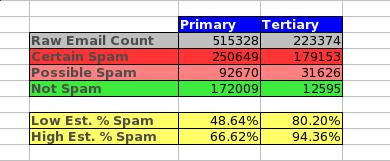
That’s all good, reasonable logic behind why spammers would do such things. But do they? So we decided to analyse our mail servers and check what volume of spam really do come in via the primary vs. secondary vs. tertiary mail servers over the month of April:

So there we have some raw numbers…..suggesting that of the email the primary server receives, between 48% and 66% of the email is spam, while the figures are between 80% and 94% for the secondary and tertiary mail servers. These figures aren’t actually too much of a surprise as we ran up similar numbers internally late last year.

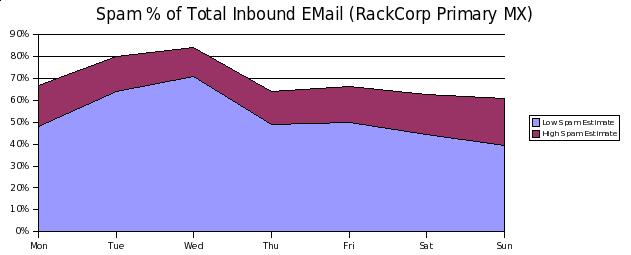
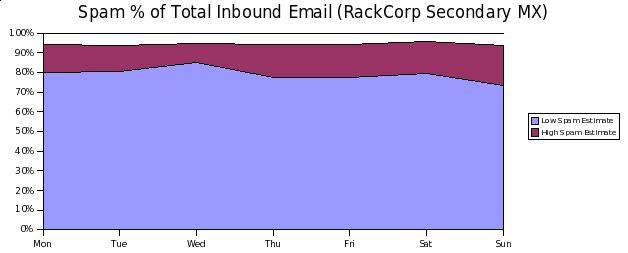
While we’ve got the numbers open, let’s do a day-by-day analysis for April too:

Spam Statistics by Day April 2008 - RackCorp Primary MX

Spam Statistics by Day April 2008 - RackCorp Primary MX

So it looks like Tuesday/Wedneday are the biggest days for receiving spam by around 20%, and the weekends the lowest.

There are some limitations on the above stats that could affect the quality of the stats:

1) Some RackCorp customers have greylisting turned on on their accounts/aliases. The above stats are only based upon what has happend AFTER greylisting – so it’s probable that the spam % stats are actually higher.
2) The per-day stats are based upon total emails – more real emails are sent on certain days, which would impact upon the stats.
3) For heavily spammed domains, RackCorp employs a tertiary MX record that accepts connections but never accepts email. This means that some spamming software would send, not get the error, and would never try again. Once again this means it is probable that the spam % stats are higher.

So that wraps up this stats session. There’s nothing much we could use there to improve services, except perhaps increasing the score applied to all emails received via secondary/tertiary MX servers. For now….we’re fairly happy with our anti-spam services. If things get worse, we might have to fall back to this information.

– RackCorp

php_network_getaddresses failed

We came across a problem today which we have seen a few times before. They were attempting to install wordpress akismet and when attempting to verify their API key they would always receive the following error:

There was a problem connecting to the Akismet server

This rather trivial message in this instance, and in other instances has been due to a badly set up chroot environment. The actual PHP error being generated is this one:

Warning: fsockopen(): php_network_getaddresses: getaddrinfo failed: Name or service not known

Which simply means that it could not resolve the hostname into an IP address in this instance. There is talk over at PHP bugs about it in which it has been repeated many times that this is NOT a PHP bug! Unfortunately people tend not to read before they post….

Anyway, the important files that you are going to need to make sure are in your chroot environment (with appropriate permissions) to resolve this problem are:

/etc/resolv.conf
/etc/hosts
/etc/nsswitch.conf
/etc/protocols
/etc/services
/etc/host.conf
/lib/libresolv.so.*
/lib/libnss_files.*
/lin/libnss_dns.*

And if you have any wierd and wonderful domain configuration going on, you may need other libnss files too.